CloudPersistence License Auditor
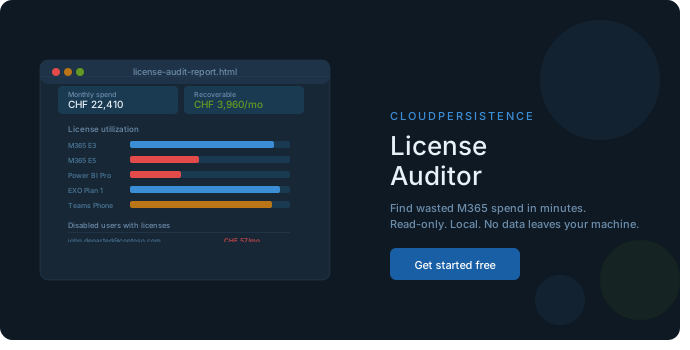
You might be in a scenario where you manage an M365 tenant with a few hundred seats — maybe a mix of E3, E5, Business Premium, some Power BI Pro sprinkled in, a couple of Teams Phone licenses — and you have this nagging feeling that you're paying for stuff nobody uses. Disabled accounts from people who left months ago still holding E5 licenses. 30 Power BI Pro seats assigned to people who haven't opened Power BI once. Licenses purchased but never even assigned to anyone.
You're probably right. And it's costing real money every month.
I built CloudPersistence License Auditor to answer one simple question: where exactly is the waste, and how much is it costing you?
What it does
It's a PowerShell script that connects to Microsoft Graph using your own credentials (interactive sign-in, read-only, nothing stored), reads your tenant's license data, and generates a self-contained HTML report on your local machine. No data leaves your computer. No app registration created. No secrets stored anywhere.
The report covers three things:
Shelfware — licenses you're paying for but nobody is using. You bought 100 E3 seats but only 85 are assigned? That's 15 × $36/month quietly draining your budget.
Disabled accounts with active licenses — someone left the company, their account got disabled, but the licenses were never removed. This one is surprisingly common, especially in larger tenants without proper offboarding automation.
Inactive users — licensed users who haven't signed in for 90+ days (configurable). If someone has an E5 license and hasn't logged in since March, that's $57/month you should probably investigate. Note: this one requires Entra ID P1/P2 in the tenant. If your tenant doesn't have P1, the tool detects this automatically and skips the section — no crash, no error.
How it works
- You run the script in PowerShell
- It opens a browser for interactive sign-in (recommended role: Global Reader — purely read-only)
- First run only: it asks your currency and the price per license for each SKU in your tenant (with list-price hints as reference)
- Prices are saved to a local JSON file — next runs are prompt-free
- An HTML report opens in your browser with the full breakdown
That's it. No account to create, no SaaS platform to onboard, no data sent anywhere.
Who is this for
- IT Admins managing M365 tenants who want a quick waste check before renewal season
- IT Managers who need a clean report to show leadership how much can be recovered
- MSPs and consultants running license audits across multiple client tenants
- Anyone who suspects their M365 spend is higher than it should be
Prerequisites
- PowerShell 7+ (recommended) or Windows PowerShell 5.1
- Microsoft Graph PowerShell SDK modules (the script checks and tells you exactly what to install)
- An account with at least Global Reader role on the target tenant
- Note: the first time "Microsoft Graph Command Line Tools" is used in a tenant, admin consent may be required once (Global Admin or Privileged Role Administrator). After that, Global Reader works fine.
What about prices?
The tool needs to know how much each license costs to calculate the waste in actual money. Microsoft Graph tells you how many licenses you have, but not how much you pay — that's contractual data.
On first run, the script asks you for the price of each SKU it finds in the tenant, with a rough USD hint next to each one for reference. You type in your real prices (from your invoice or your CSP partner), and they're saved locally for future runs.
Where to find your real prices depends on how you buy:
- Direct purchase (MOSA / MCA direct): Admin center → Billing → Bills & payments → check your invoice
- Through a CSP partner/reseller: The price is on the invoice from your partner, not in the Microsoft admin center
The report footer shows exactly which price source you used, so anyone reading it knows how reliable the numbers are.
FAQ
Is this safe to run on production? Yes. It only reads data — no writes, no modifications, no deletions. The recommended role is Global Reader, which by definition cannot change anything. The script uses Microsoft's official Graph PowerShell SDK with interactive authentication.
Does it store credentials or tokens? No. Authentication happens via interactive browser sign-in. The token lives in memory for the duration of the session and is discarded when the script finishes. The only thing saved to disk is the price file (currency + per-SKU prices you entered).
Can I run it on multiple tenants? Yes. Use the -PriceFile parameter to keep separate price files per client: .\Invoke-CPLicenseAuditor.ps1 -PriceFile "C:\Clients\ClientA\prices.json"
What if my tenant doesn't have Entra ID P1? The inactive users section requires P1/P2 for sign-in activity data. Without it, the script detects this automatically, skips that section (marked as N/A in the report), and still generates the shelfware and disabled-users analysis. No crash.
Can I use list prices instead of entering my own? Yes. Run with -UseListPrices to skip prompts and use the built-in USD estimates. Good for a quick first look, but not accurate for a report you'd show a client.
👇 Subscribe below (free) to get access to the download, full setup instructions, and the README.