How to block weak passwords with Microsoft Entra ID Password Protection

Introduction
Weak passwords are one of the most common attack vectors in any organization. "Password123", "Company2026" or variations of your company name are the first things any attacker tries in a password spray attack. Microsoft Entra ID Password Protection lets you block these passwords — including custom variants you define yourself — directly at the tenant level, and even for synced on-premises accounts.
What it does
Password Protection works in two directions:
Global banned password list — a list maintained by Microsoft, updated dynamically based on passwords discovered in breaches. You can't view or edit this list, but it's active by default.
Custom banned password list — your own list. You can add up to 1000 terms (company name, city, internal products, etc.) and Entra ID will also block character-substitution variants of them (like "@" instead of "a", "3" instead of "e", etc.).
Prerequisites
Licensing → Microsoft docs
For cloud-only accounts: Microsoft Entra ID Free (included in any M365 plan)
For on-premises (AD DS): Microsoft Entra ID P1 or equivalent (included in M365 Business Premium, E3, E5)
Configuration
Head over to Microsoft Entra Admin Center → Protection → Authentication methods → Password protection.!
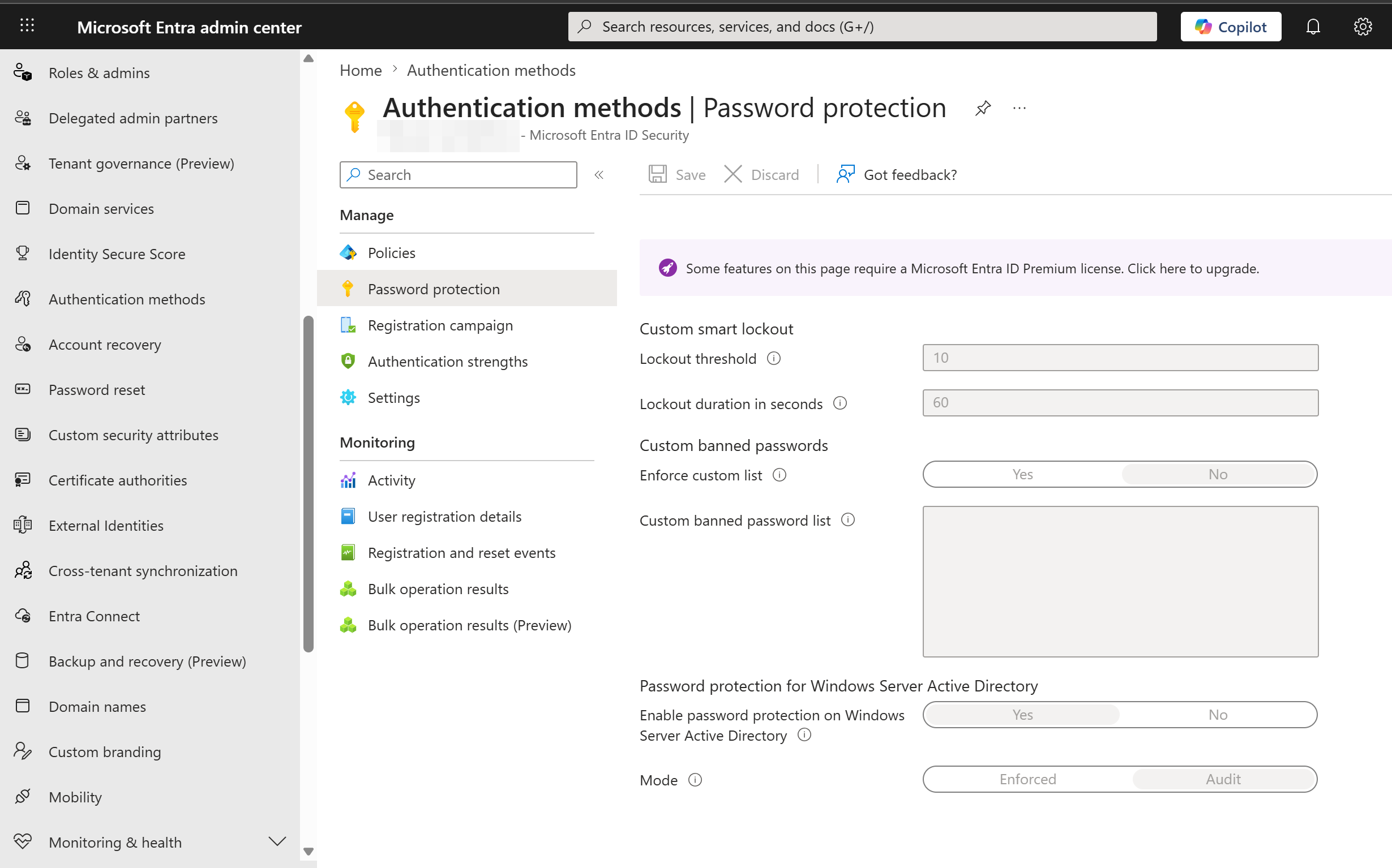
Available settings:
Lockout threshold — the number of failed attempts before locking the account. Default: 10. I'd recommend something between 5-8 depending on how aggressive you want to be.
Lockout duration in seconds — how long the account stays locked. Default: 60 seconds.
Enforce custom list — enables the custom list. Set to Yes.
Custom banned password list — add your terms, one per line. Think company name, abbreviations, cities, products, department names. Don't add variations manually — the algorithm covers those automatically.
Enable Password Protection on Windows Server Active Directory — if you have a hybrid environment with AD DS, set to Enabled and choose your Enforcement mode.
Note! Enforcement mode comes in two flavors: Audit and Enforced. I'd recommend starting with Audit for a few weeks to see what passwords would have been blocked, before switching to Enforced. Same as with any other policy — Test, Pilot, then deploy to prod.
On-Premises (Hybrid)
If you have synced AD DS, you'll need to install two agents on your Domain Controllers:
Entra ID Password Protection DC Agent — installed on each DC, intercepts password changes
Entra ID Password Protection Proxy — communicates with the cloud to download updated lists
Both can be downloaded from Entra Admin Center → Protection → Authentication methods → Password protection → On-premises.
Be careful: the DC agent requires a restart on the DC to become active. Plan this outside business hours.
Conclusion
Entra ID Password Protection is one of the simplest and most effective hardening measures you can implement, with no visible impact for users if their password is reasonable. The custom banned list is where the real win comes from — you block the exact vocabulary specific to your organization, which would otherwise slip past any generic filter.
Hope you enjoyed the article, if you would like to know more, please subscribe below (it's free), and become a member where we have some premium pieces of content. And if you need help with configuring your tenant, migrating to the cloud or any other related topic, please feel free to reach out through the contact section.